


Account & Login Help
Select the issue that best matches what is happening. In many cases, you can resolve it immediately using self-service options below.
This is a Salesforce error that can occasionally occur when signing in.
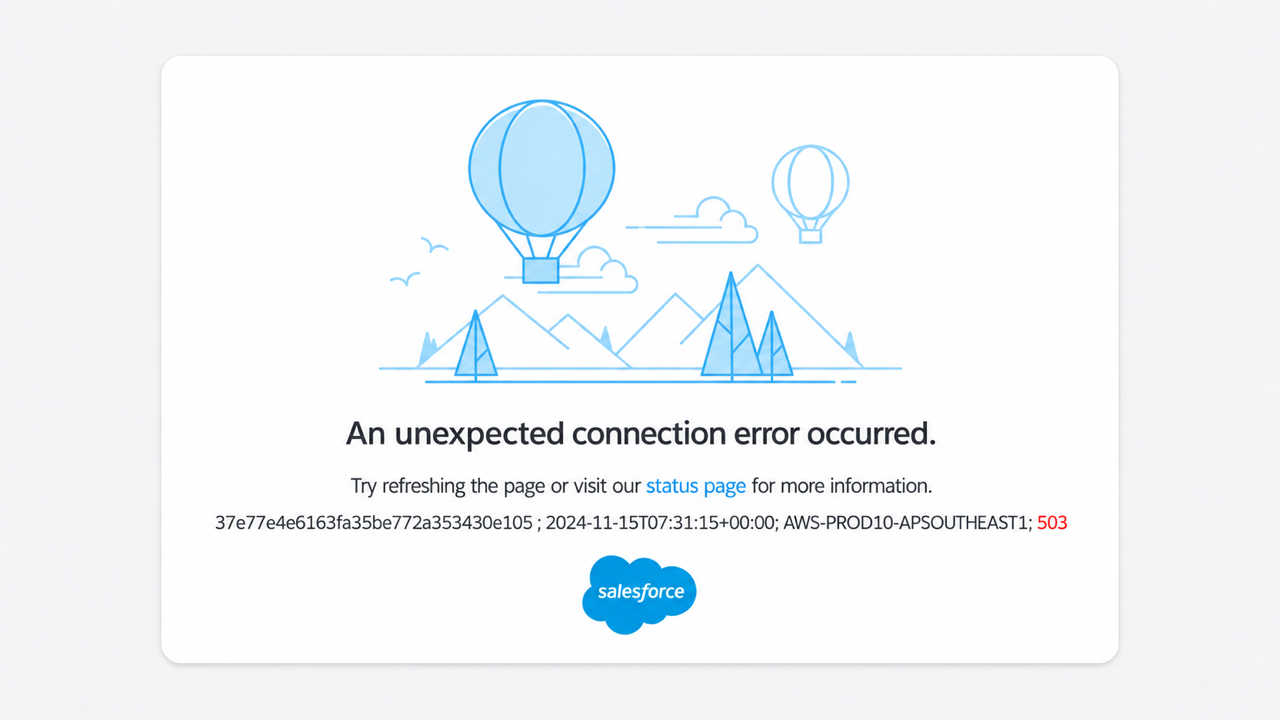
Example of the error page
Try these steps to resolve the issue:
- Refresh the page Sometimes a quick refresh resolves the issue.
- Clear your browser cache and cookies Close your browser, clear cache and cookies, then try again.
- Try an incognito or private window This helps rule out cached data or browser extensions.
- Delete Salesforce cookies If you are still seeing the error, try deleting Salesforce cookies (for example, cookies starting with “sid”).
- Try a different browser or device If possible, test using a different browser (e.g., Chrome, Edge, Firefox) or a different device.
No longer have access to your MFA device?
Please use the self-service MFA reset request to regain access to your HL7 account.
This is the preferred method. The process sends a verification code to the email address associated with your HL7 account. After you verify that code, you can reset your MFA device and set up MFA again.
Self-service is available any time. Support requests are reviewed Monday-Friday, 8:00 AM-5:00 PM Eastern Time, excluding holidays.
For security, use the email address associated with your HL7 account when requesting help.
Need help setting up Multi-Factor Authentication (MFA)?
Use our step-by-step guide to complete MFA setup for the first time. Most setup issues can be resolved without contacting support.
Forgot your password?
Use the password reset option if you know your email address but have forgotten your password. A reset email will be sent to the address on file.
If you do not receive the reset email, see .
Didn't receive the email?
Before submitting a support request, please check:
- Your Junk, Spam, or Clutter folder
- Search for messages from noreply@salesforce.com
- That you are checking the email address associated with your HL7 account
- Whether your organization's email security delayed or quarantined automated mail
- Whether you waited a few minutes and tried again
If you still do not receive the email, your account may not be associated with the address you entered (for example, after an email change or if the account has been unused since the 2023 system migration).
Issues with Human Verification?
HL7 uses Google reCAPTCHA for human verification. If you are having trouble completing verification, try:
- Turn off your VPN or proxy
- Refresh the page and try again
- Disable ad blockers or privacy extensions that may block reCAPTCHA
- Try a different browser (Chrome or Edge often work best)
- Use a private/incognito window
Need help logging in to Confluence or Jira?
HL7 Confluence and Jira use your HL7 account credentials via single sign-on. Sign in to your HL7 account first, then return to Confluence or Jira.
Still unable to log in?
If you have completed the self-service steps above and still cannot access your account, submit a support request. Include a brief description of the problem, for example:
- I am not receiving the password reset email
- I am unable to reset my password
- I cannot complete Multi-Factor Authentication (MFA) setup
- I need my MFA device reset
- I receive an error message when attempting to log in
Including screenshots or exact error messages helps us diagnose the issue more efficiently.
Submit an Account Support Request
Use this form only after you have tried the self-service options above. Required fields are marked with *.